An event guest list often starts as a few names in Excel. Then the client sends another version, a colleague adds VIPs on a separate sheet, and someone asks whether the plus-ones are included in the total. By the time the doors open, the spreadsheet has become part of the event itself.
Download our free event guest list template for Excel below, or start with your own workbook. Here is a practical way to take your list from Excel to the iPads at the entrance, using Porta and local support from iPad Rental Hong Kong.
Free event guest list template for Excel
Download the free event guest list Excel template (.xlsx)
The workbook includes a blank Guest list tab and a separate fictional example. It has space for names, companies, groups, party sizes, optional email addresses and notes. Use it as a starting point, or keep the workbook you already have.
1. Decide what one row means
For a straightforward list, use one row per named guest. If your team will check a whole party in together, you can instead use one row for the lead guest and record the total party size.
For example, a named guest arriving with one companion has a party size of two. Avoid listing that companion separately as well, unless you deliberately want an individual record for each person. Counting rows and counting people are different things.
Keep the details the door team will actually use: a full name, a company or group where helpful, the party size and a short operational note. Collect email addresses only when your event needs them.
2. Bring the workbook into Porta Dashboard
You do not need to rebuild every existing spreadsheet before getting started. Porta Dashboard’s intelligent import turns messy Excel workbooks and CSV files into an organised guest list.
Once imported, review the result. Check a few names from each part of the workbook, confirm party counts and look for duplicate entries. If several people have the same name, a company or group can help the reception team identify the right person.
Keep names in their original language. Porta Frontline offers intelligent, multilingual search by name, company or group, including languages such as Chinese, Japanese and Korean.
3. Choose how guests will check in
For a reception, dinner or private launch, searching by name lets staff greet guests personally. Porta Essential supports this style of arrival. Where quicker scanning is useful, Porta Complete adds guest QR check-in, with name search available when a guest cannot find their code.
Think about the entrance as well as the software. A host moving through a reception area may need a handheld iPad; a busy doorway may work better with several stations and a separate place to handle questions.
See our event check-in service in Hong Kong and Macau for equipment, setup and local support.
4. Prepare the iPads and brief the team
Porta supports an unlimited number of iPads for the same event. Choose the number to suit your arrival flow, entrances and staff, rather than assuming one device will be enough for every venue.
- Connect each iPad to the correct event and prepare it before guests arrive.
- Try a few searches, including names in different languages and guests arriving with companions.
- Agree who will handle walk-ins, corrections and queries that need the organiser’s attention.
- Check battery levels and venue connectivity. Prepared iPads can keep checking guests in if Wi-Fi drops, then sync updates when back online.
- For an evening party, try Dark mode before the doors open.
5. Keep changes manageable during the event
A guest may arrive under a different name, bring an unexpected companion or turn up without being on the original list. Porta Frontline lets staff add walk-ins and correct guest details on the spot.
Give the team a clear way to handle exceptions. If an organiser makes a last-minute decision, everyone at the entrance should know who has the final say. Avoid passing around competing spreadsheet versions once check-in is under way.
6. Finish with an attendance record
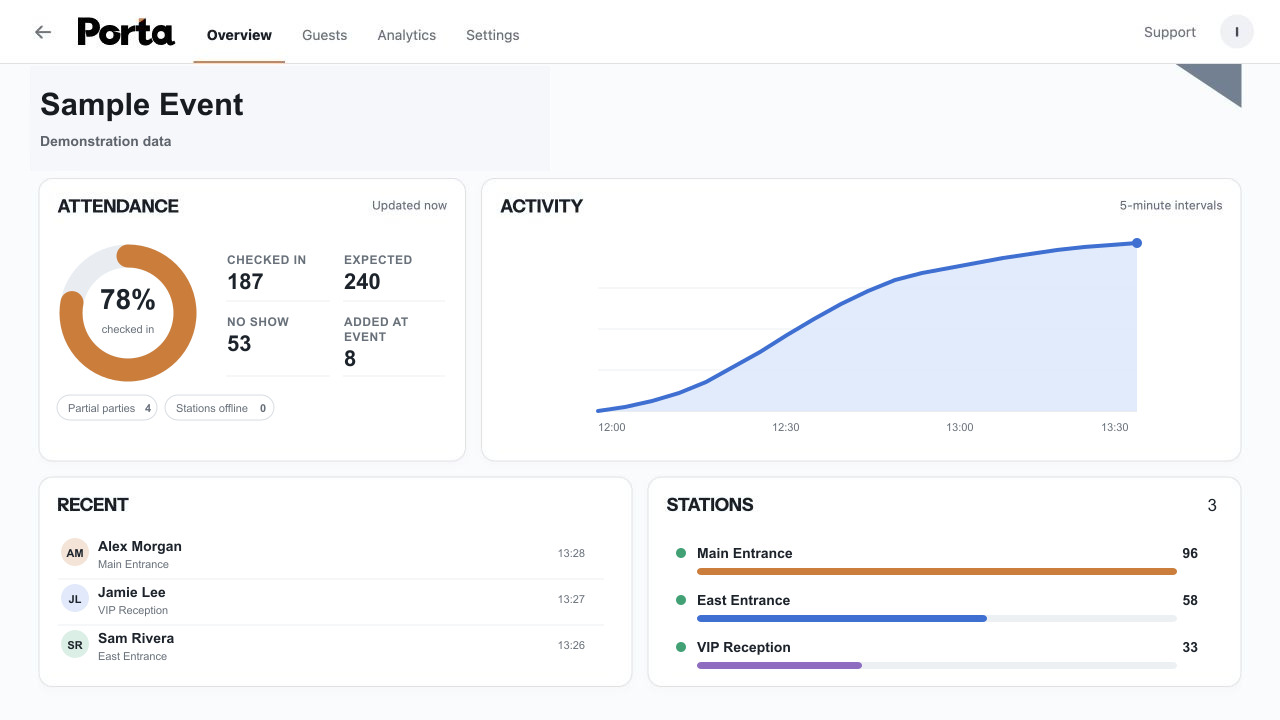
Follow arrivals in Porta Dashboard during the event, then export attendance to Excel or CSV afterwards. Use the result for your event report and appropriate follow-up, and keep it separate from the original invitation list.
Need help getting the entrance ready?
iPad Rental Hong Kong can provide prepared iPads, stands, connectivity equipment, setup, staff briefing and on-site support in Hong Kong and Macau. Tell us your expected guest count, venue and arrival style, and we can help plan a practical setup.




[…] our guest list management and event check-in service for equipment and support options, or read our Excel-to-iPad guest list guide and download the free […]